
 STR Minion
User Guide
Everything STR Minion can do
Last updated: June 9, 2026
STR Minion helps short-term-rental investors log their work in seconds — by chat or voice, as they do it — to build contemporaneous, audit-defensible records of material participation under IRC §469. This guide walks through every feature available today. It is not tax advice; see the material participation reference for how the tests work and talk to your own tax advisor.
1. Getting started
Create your account. Sign up with an email and password, or with Google or Apple. The first time you sign up we create a household for you automatically. If you signed up with email, we send a verification link (valid 24 hours) — verify it before inviting anyone to your household.
Add your first property. Onboarding drops you straight into adding a rental — a nickname (e.g. “Lakeview Cottage”), address, the date it was placed in service, your ownership percentage, and a color used to identify it on the dashboard. You can skip this and add properties later from Settings.
Sign in any time at the login page. Forgot your password? Request a reset link (valid one hour) from the login screen.
2. Logging your work
There are four ways to record time. The fastest — and the one designed for contemporaneous records — is talking or typing to the assistant.
Chat & voice
On the Chat screen, just say what you did: “Spent 45 minutes at Lakeview Cottage fixing a leaky faucet.” Tap the microphone to speak instead of type — on supported browsers and on mobile your speech is transcribed and sent as a normal message. The assistant reads your message, figures out the property, category, duration, and date, and shows you a draft entry to review.
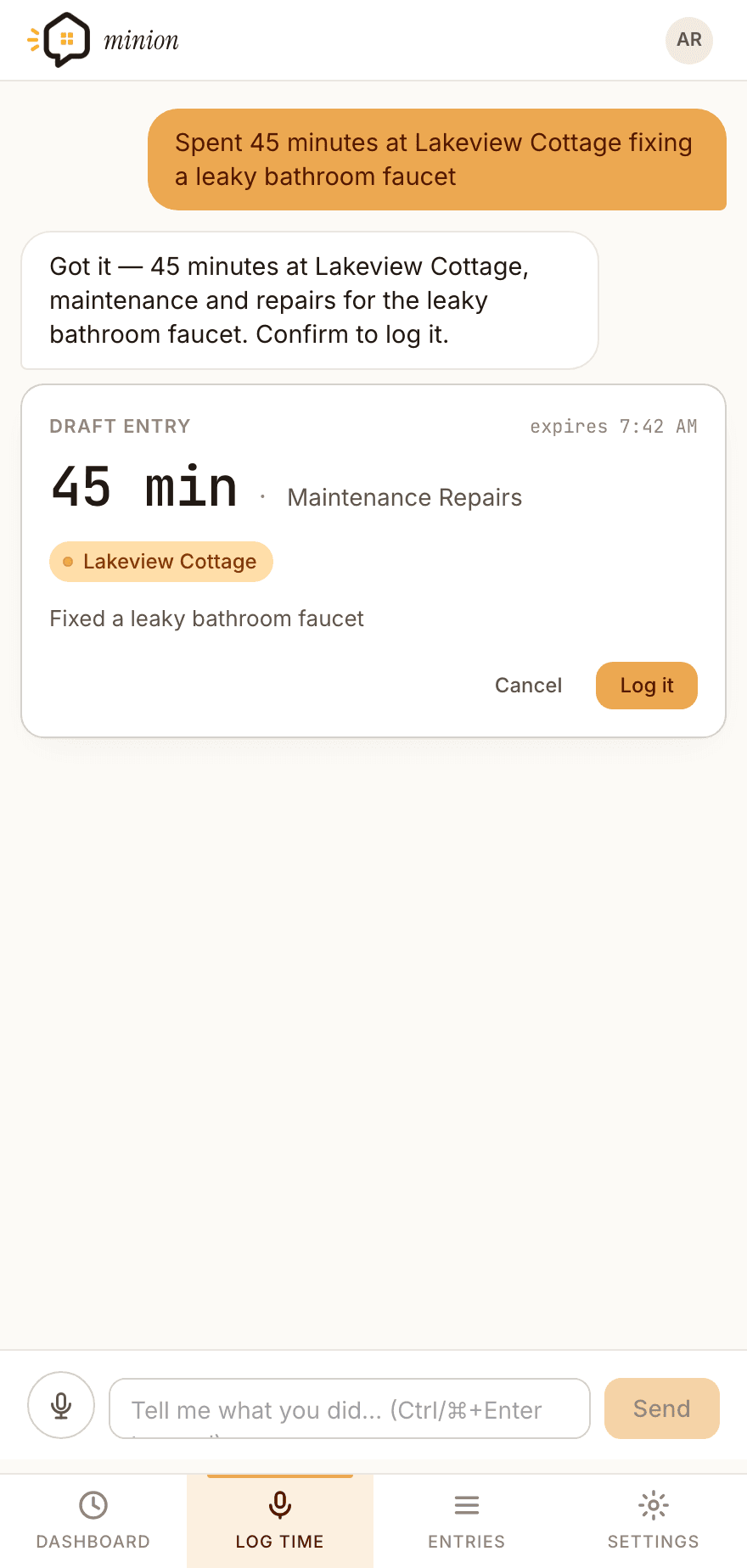
Two things make this safe and accurate:
- Nothing is saved until you confirm. The assistant only ever proposes an entry. You review the draft, edit any field (duration, category, description, date, or property), and then tap Log it. If you do nothing, nothing is written.
- The property is resolved for you. Mention a nickname, street, or city and STR Minion matches it to one of your properties. If the hint is ambiguous (or matches none), the card shows a picker so you can choose.
If the assistant needs more detail (“which property?”, “how long?”), it just asks in plain language — reply and it updates the draft. Non-MP categories (research, education, financing) are flagged so you know they won’t count toward material participation.
Manual entry
Prefer a form? Log time lets you pick a property and category, set the date and duration (in minutes), and add a description — about 30 seconds end to end.
Import from a spreadsheet
Already tracking time elsewhere? Import a Clockify detailed time report (CSV or XLSX) or STR Minion’s own CSV template. You preview every row — with per-row validation and duplicate detection — before anything is committed, and you can download the template from the import screen.
Contemporaneous vs. reconstructed
Every entry records both when the work happened and when you logged it. If you log something more than 72 hours after the fact, it’s automatically flagged as retroactive. We never backdate when an entry was created, and we never hide the retroactive flag — because contemporaneous records are what survive an audit.
3. Your dashboard & the material-participation tests
The dashboard is your at-a-glance status for the selected tax year. The hero ring shows your material-participation hours against the 100-hour mark, and a year picker lets you move between years.
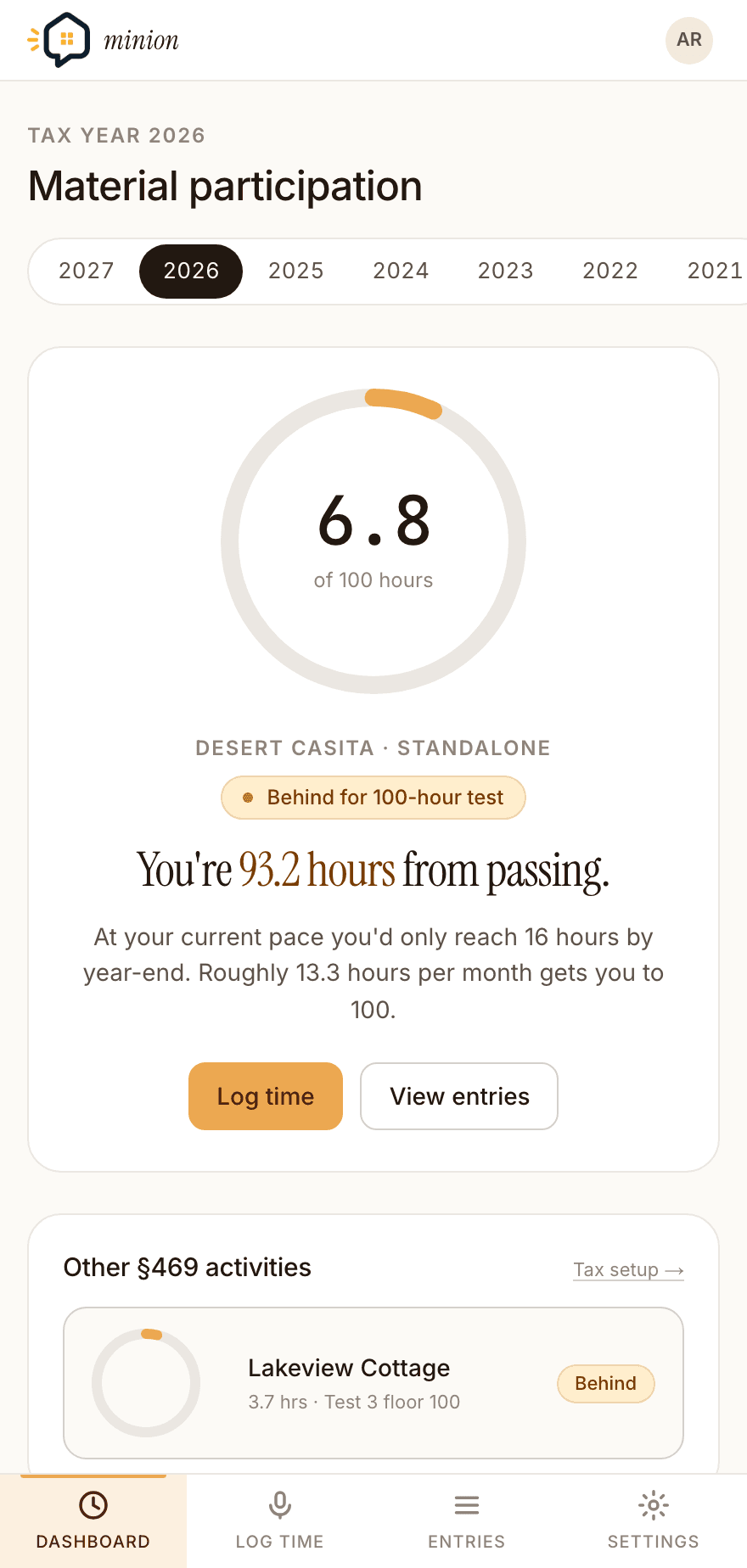
STR Minion evaluates the IRC §469 material-participation tests for you:
- Test 1 — 500 hours. You materially participate if your hours reach 500 for the year.
- Test 3 — 100 hours and more than anyone else. At least 100 hours and more than any other individual. STR Minion shows a verbatim caveat here: it does not yet track contractor hours, so you must confirm separately that you did more than any paid help.
- Test 2 — substantially all the work. Surfaced as “viable” with caveats rather than a hard number.
Totals are broken down by property and by person, and a recent-activity list shows your latest entries (including anything logged retroactively). Categories that don’t count toward MP are shown for context but excluded from the participation total.
4. Reviewing & editing entries
The Entries screen is the full record. Entries are grouped by day with daily subtotals, and you can filter by property, category, household member, date range, or show only entries that count toward material participation.
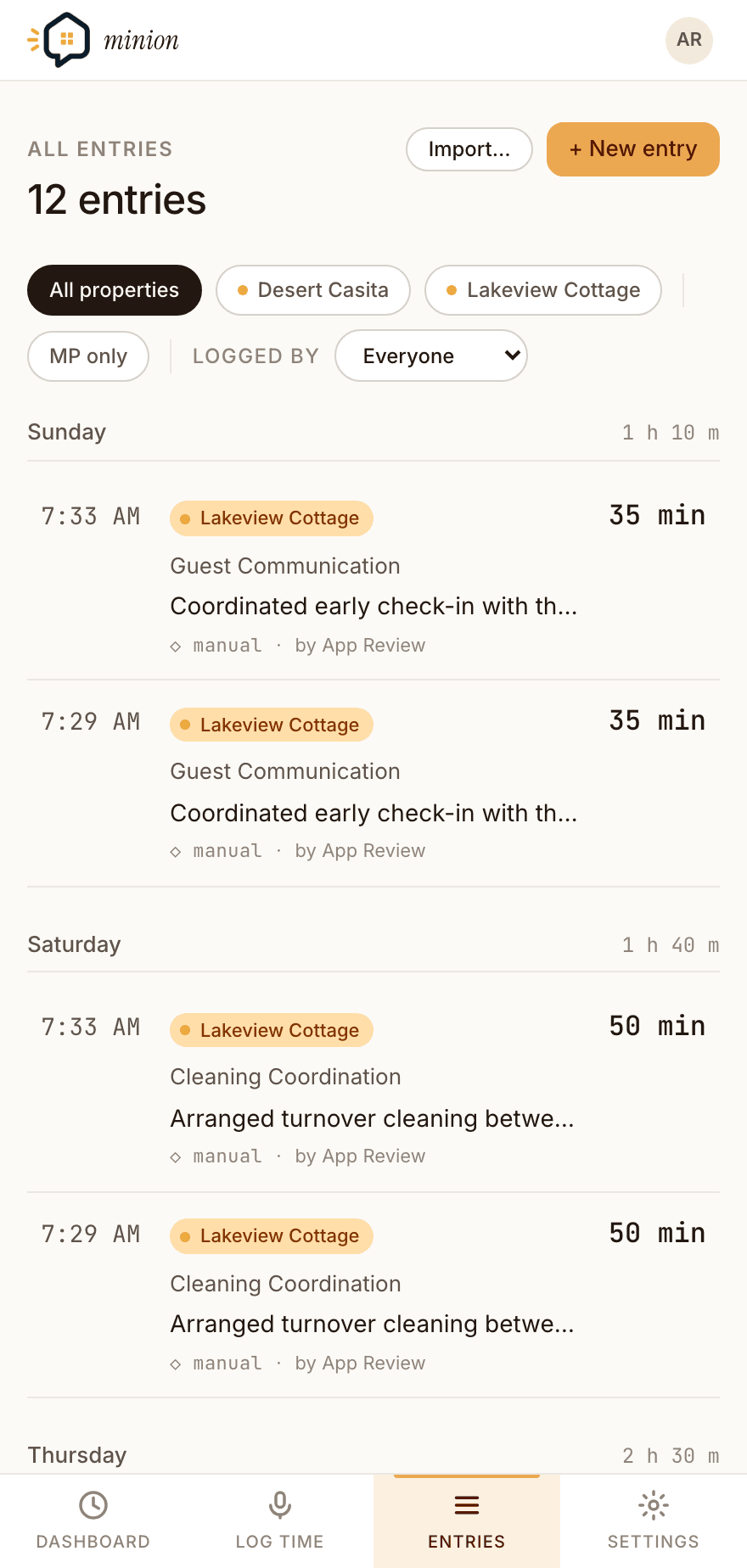
- Edit inline. Tap an entry to adjust its duration, category, or description.
- Delete with a safety net. Deleting an entry is a soft delete with a 30-day undo window — restore it any time before then.
- See how each entry was made. Every entry is tagged with its source — chat, voice, manual, import, or API — and retroactive entries carry a badge.
5. Properties
Manage your rentals from Settings → Properties: add or edit a nickname, full address, placed-in-service date, ownership percentage, and dashboard color. Each property shows its year-to-date hours and entry count. Archiving a property is a soft delete — it disappears from the new-entry pickers but stays in your historical reports, and you can unarchive it later.
6. Your spouse & household
Under §469(h)(5), a spouse’s hours combine with yours for every material- participation test. From Settings → Household you can invite a spouse or co-host by email (invites are valid 7 days), see who’s in your household and their role, and — as the owner — rename the household, revoke pending invites, or remove members.
- Spouse hours are aggregated with yours and shown as a combined total on the dashboard.
- Other co-hosts are tracked separately so they count as “anyone else” in Test 3’s “more than anyone else” comparison.
- Cross-household entity links let co-owners in different households roll up per-person hour totals to each other’s dashboards while keeping entry-level detail private.
7. Settings, tax setup & account
- Profile. Update your display name and switch between light and dark themes.
- Tax setup. Define your ownership entities (sole/joint, LLC, partnership, TIC, and so on), record non-spouse contributors per entity (cleaners, property managers, co-owners) to support the Test 3 comparison, and group entities into activity groups when you make a §1.469-4 grouping election. Pending and active linked-partner shares appear here too.
- Access & security. Change your password (this signs out your other devices), and create API keys for programmatic access — the full key is shown only once at creation and stored only as a hash. If you’ve connected an external assistant, you can review and revoke those connected apps here.
8. The mobile app
The STR Minion mobile app (iOS and Android) is built for logging on the go. It mirrors the web essentials: a Chat tab with voice and text logging and the same review-before-save card, an Entries tab grouped by day with edit and delete, a Dashboard tab with your Test 1 and Test 3 progress, and a Settings tab with your account info, app version, and sign-out. Voice on mobile uses the device’s native speech recognition, and the app updates over the air.
9. API & integrations
Power users and tools can talk to STR Minion directly. Create an API key under Settings → Access, then use the REST API to manage properties, entries, and participation summaries, or connect an MCP-compatible assistant (such as Claude) to log and review time through the same two-phase, confirm-before-save flow. External assistants authenticate with OAuth and only ever see the data in your household.
10. What's not included yet
So you know where the edges are today, these are planned but not yet available: contractor-hour tracking (referenced by the Test 3 caveat), a generated PDF audit report, automatic correlation with Airbnb/VRBO or calendar/email evidence, receipt and photo attachments, and CPA/property-manager team accounts. The material-participation math covers Tests 1 and 3 numerically and flags Test 2 as viable with caveats.
Questions about your data? See the Privacy Policy. Ready to start? Create your account.